Chapter 4 - Static and Dynamic Modes
The resources delivered by web servers are either stored on the server in files or generated on demand by the server.
We speak of the static web when the web server gives access to files, and of the dynamic web when the web server builds resources dynamically. Modern web servers work both statically and dynamically, depending on the resources requested.
This chapter presents these two modes of operation of web servers (static mode and dynamic mode). It describes the conventions used to set up static mode. Finally, it explains how to generate HTML pages dynamically.
Static resources
Some of the resources that make up web pages never change, or change very rarely. This is the case for images or videos. The most obvious example is a company logo displayed at the top of every page of the company's website.
Other resources change over time but remain relatively stable, and in any case are not modified every time a user accesses them. This is the case for CSS style sheets, which are relatively stable even though they may change when a site's design is updated. It is also the case for JavaScript code, which is relatively stable even though it may change when features are added to a site.
These stable resources can take up a lot of space (especially videos). This is why we often prefer to store them as files on the web server and serve them on demand. This is what we call the static web.
The main difficulty of the static web is giving each resource a different URL, knowing that there are often a very large number of resources. To deal with this difficulty, the convention is simply that the URL of a resource corresponds to the path of the file on the server. To set up this convention easily, we often decide to store all static resources under a single directory on the server (often named public or static). For example, the file image1.jpg stored in the public directory is accessed via the URL http://localhost:8080/public/image1.jpg. Likewise, the URL to access the file image2.jpg stored in the public/images directory is http://localhost:8080/public/images/image2.jpg.
A web server that applies this convention must analyze the URL requested by the browser and check that the path of the resource starts with the name of the server's root directory (for example /public/). If it does, the requested URL targets a static resource (a file). The server then just has to extract the path from the URL and look for the corresponding file in its public directory.
Code 4.1 gives the code of a static web server. This code applies both conventions: URLs match file paths, and all files are stored in the public directory. Line 8 checks that the requested URL starts with /public/. If it does, line 10 reads the content of the file corresponding to the requested URL and line 11 sends it back to the browser. If the requested URL does not match a file, an exception is thrown and an error message is sent back to the browser (line 14). Note also that we used a template literal on line 22 (the ${} syntax). It evaluates the content between the braces and turns it into a character string.
const fs = require("fs");
const http = require("http");
const host = 'localhost';
const port = 8080;
const server = http.createServer();

server.on('request', (req, res) => {
    if (req.url.startsWith('/public/')) {
        try {
            const fichier = fs.readFileSync('.'+req.url);
            res.end(fichier);
        } catch (err) {
            console.log(err);
            res.end('error: unknown resource');
        }
    } else {
        res.end("error: invalid URL");
    }
});

server.listen(port, host, () => {
    console.log(`Server running at http://${host}:${port}/`);
});
Code 4.1: Code of a static web server.
Now assume that the file index.html is stored in the public directory and that its HTML is that of Code 4.2. Assume also that the server stores ten images (five full-size images and five small ones) in the same public directory. Thanks to the static server, Figure 4.1 shows the web page available at the URL http://localhost:8080/public/index.html.
<!DOCTYPE html>
<html lang="en">
<head>
    <meta charset="UTF-8">
    <meta http-equiv="X-UA-Compatible" content="IE=edge">
    <meta name="viewport" content="width=device-width, initial-scale=1.0">
    <title>Media</title>
</head>
<body>
    <header>My Images</header>
    <nav>
        <ul>
            <li><a href="index.html">index</a></li>
        </ul>
    </nav>
    <section>
        <div>
            <a href="image1.jpg"><img src="image1_small.jpg"></a>
            <a href="image2.jpg"><img src="image2_small.jpg"></a>
            <a href="image3.jpg"><img src="image3_small.jpg"></a>
        </div>
        <div>
            <a href="image4.jpg"><img src="image4_small.jpg"></a>
            <a href="image5.jpg"><img src="image5_small.jpg"></a>
        </div>
    </section>
</body>
</html>
Code 4.2: HTML code of the static web page index.html.
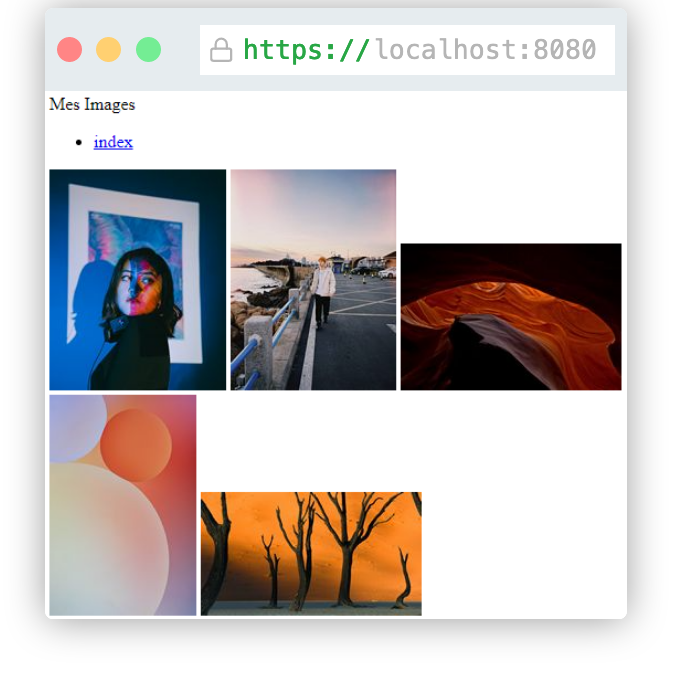
Figure 4.1: Display of the web page of Code 4.2, served statically.
Dynamic resources
Unlike static resources, dynamic resources are generated every time a browser requests them. This is the case for web pages that depend on data that changes over time, for example an image wall showing the most popular images of the day. It is also the case for web pages whose HTML code contains information specific to a given context. An e-commerce web server, for example, dynamically generates a web page to show a customer's current order. Finally, it is the case for web pages that would be impossible to code statically because there would be too many of them. For example, if you want a web page to display the months of a perpetual calendar, you would need to code an infinite number of web pages in static mode; dynamic generation is used instead.
In dynamic mode, a web server generates the requested resource and sends it back to the browser. Although in theory any resource can be generated dynamically, we mainly consider the generation of HTML code here. Generating images, videos, JavaScript code or even CSS style sheets is much rarer than generating HTML code.
Since HTML code is text, the web server simply has to build the character string of the HTML code. The most basic way to do this in JavaScript is to use the "+" operator, which concatenates two character strings. You just build the different parts of the HTML code and concatenate them to obtain the complete HTML code. As soon as the character string is fully built, the web server can send it back to the browser. This is done with the response's end() method, which takes a character string as its argument.
For example, Code 4.3 shows a web server that dynamically generates an image wall from all the images in the public directory. This code reuses Code 4.1 of the static server (lines 8 to 15). The dynamic part is on lines 16 to 26. The server starts by listing all the files in the public directory (line 17). It then filters the files to keep only those ending with "_small.jpg" (line 18). Finally, it builds the HTML code (lines 20 to 25) and sends it back to the browser (line 26). Building the HTML code uses a for loop (lines 22 to 24) to create as many <img> tags as there are images in the public directory.
const fs = require("fs");
const http = require("http");
const host = 'localhost';
const port = 8080;
const server = http.createServer();

server.on("request", (req, res) => {
    if (req.url.startsWith('/public/')) {
        try {
            const fichier = fs.readFileSync('.'+req.url);
            res.end(fichier);
        } catch (err) {
            console.log(err);
            res.end("error: resource");
        }
    } else if (req.url === '/mur-image') {
        let files = fs.readdirSync('./public');
        let sFiles = files.filter(f => f.endsWith('_small.jpg'));

        let html = '<!DOCTYPE html><html lang="en">';
        html += '<head><title>Image wall</title></head>';
        html += '<body> <h1>Wall</h1>';
        for (let f of sFiles) {
            html += '<img src="/public/' + f + '">';
        }
        html += '</body></html>';
        res.end(html);
    } else {
        res.end("error: URL");
    }
});

server.listen(port, host, () => {
    console.log(`Server running at http://${host}:${port}/`);
});
Code 4.3: Web server that dynamically generates an image wall.
A web server that dynamically generates a web page may also need to analyze the request to understand what it must generate. This is the case on an e-commerce site, where the server must identify the customer to find their current order. It is also the case for a calendar, where the server must determine which year and month are requested.
The HTTP protocol offers several ways to pass information that the server will use to generate the resource. For simplicity, in this chapter we only consider the URL of GET requests. It is also possible to pass additional information in the body of the HTTP request, but this is not necessary to illustrate how dynamic web pages work (see chapter 5).
A URL can contain additional information either in its path part or in its parameters part (see Chapter 5). Take the example of the calendar, which requires a year and a month. You can use the URL http://localhost:8080/calendrier/2021/12, using the path part of the URL to request the calendar for December 2021. You can also use the URL http://localhost:8080/calendrier?annee=2021&mois=12, giving the year (annee) and the month (mois) in the parameters part of the URL. Code 4.4 gives the code of the dynamic server, assuming that the requested URLs include the month and the year in the path (for example: http://localhost:8080/calendrier/2021/12). Line 8 checks that the requested URL starts with /calendrier/. Line 9 splits the URL into several parts using the "/" character as a separator. Line 10 checks that the URL has four parts. Lines 13 and 14 retrieve the year and the month. Lines 15 to 21 build the HTML code of the calendar. For simplicity, the calendar itself is not displayed, but it could be using HTML tags that display a table. Finally, line 22 sends the HTML code back to the browser.
const fs = require("fs");
const http = require("http");
const host = 'localhost';
const port = 8080;
const server = http.createServer();

server.on("request", (req, res) => {
    if (req.url.startsWith('/calendrier/')) {
        let urlParts = req.url.split('/');
        if (urlParts.length != 4) {
            res.end("error: month / year");
        } else {
            let annee = urlParts[2];
            let mois = urlParts[3];
            let html = '<!DOCTYPE html><html lang="en"><head><title>Calendar</title></head>';
            html += '<body> <h1>Calendar</h1>';
            html += '<h2>' + mois + '/' + annee + '</h2>';
            //html += '<table border="1">';
            //TODO: build a table with the days of the month
            //html += '</table>';
            html += '</body></html>';
            res.end(html);
        }
    } else {
        res.end("error: URL");
    }
});

server.listen(port, host, () => {
    console.log(`Server running at http://${host}:${port}/`);
});
Code 4.4: Web server that dynamically generates a calendar based on the information given in the URL.
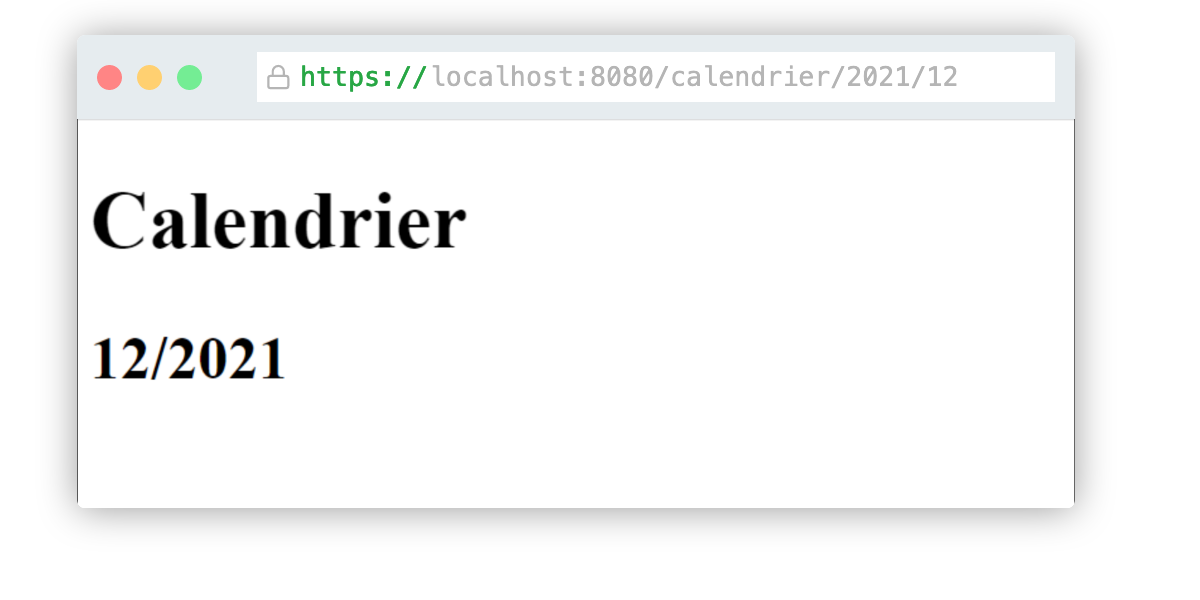
Figure 4.2: Display of the dynamic web page.
Figure 4.2 shows a web page served dynamically by our web server when the URL http://localhost:8080/calendrier/2021/12 is requested.
This chapter presents the concepts of the static web and the dynamic web. Remember three points:
- A web server gives access to its resources (HTML code, images, videos, etc.) via URLs. A resource can be served either statically, if it is stored in a file on the web server's hard drive, or dynamically, if the web server generates it on demand.
- By convention, the files of static resources are stored under a root directory often called public or static. Moreover, the URLs of statically served resources match the paths of the files on the web server's hard drive.
- To serve a resource dynamically, the server must analyze the request sent by the browser and extract the information needed for generation, which is stored in the path or the parameters of the URL. The server must then build the requested resource. This can be done by concatenating character strings to generate HTML code. Finally, the server must return the generated resource.
Practice
Review questions
What is a static web server?
- a) A server that always returns the same web pages.
- b) A server that delivers web pages stored as files on the server's hard drive.
- c) A server that is never stopped.
What is a dynamic web server?
- a) A server that generates the resources requested from it.
- b) A server that generates random resources depending on the requests sent to it.
- c) A server that restarts when a network error occurs.
Can a web server do both static and dynamic web?
- a) Yes, depending on the resources requested.
- b) No, it is impossible.
- c) Only if requests are made over HTTPS.
To generate an HTML page dynamically, how can information be passed in the URL?
- a) You must put a password in the URL to access the server.
- b) Information cannot be passed in the URL.
- c) Information can be added in the path of the URL or in its parameters.
In static mode, must resources be stored in the 'public' directory?
- a) Yes, otherwise the server cannot find the resources.
- b) Yes, but it can also be named 'static'.
- c) No, the convention is to store all resources under a directory whose name is chosen by the server.
Answers: 1-b, 2-a, 3-a, 4-c, 5-c
Exercise 1 - Static and dynamic web server
const fs = require("fs");
const http = require("http");
const host = 'localhost';
const port = 8080;
const server = http.createServer();

server.on("request", (req, res) => {
    if (req.url === '/images/image1.jpg') {
        const image1 = fs.readFileSync("./images/image1.jpg");
        res.end(image1);
    } else if (req.url === '/images/image2.jpg') {
        const image2 = fs.readFileSync("./images/image2.jpg");
        res.end(image2);
    } else if (req.url === '/images/image3.jpg') {
        const image3 = fs.readFileSync("./images/image3.jpg");
        res.end(image3);
    } else if (req.url === '/all-images') {
        const images = fs.readdirSync("./images");
        let pageHTML = "";//let pageHTML = "<!DOCTYPE html><html><body>";
        for (let i = 0; i < images.length; i++) {
            if (!images[i].endsWith("_small.jpg")) {
                pageHTML += images[i];
            }
        }
        res.end(pageHTML);
    } else {
        const index = fs.readFileSync("./index.html", "utf-8");
        res.end(index);
    }
})

server.listen(port, host, () => {
    console.log(`Server running at http://${host}:${port}/`);
});
Code 4.5: Code of the server for exercise 1.
<!DOCTYPE html>
<html lang="en">
    <head>
        <title>My Wall</title>
    </head>
    <body>
        <img src="/images/image1.jpg" width="300">
        <img src="/images/image2.jpg"  width="300">
        <img src="/images/image3.jpg"  width="300">
        <a href="/all-images">All images</a>
    </body>
</html>
Code 4.6: Code of the page index.html for exercise 1.
Create a directory
chap4-exercice1.Download the file images.zip. Unzip it and save the first ten images in a directory named images inside the chap4-exercice1 directory.
Copy Code 4.5 into a file named serveur.js stored in the chap4-exercice1 directory.
Copy Code 4.6 into a file named index.html stored in the chap4-exercice1 directory.
Modify the web server code so that it serves the images statically and follows the two conventions of a static server. For simplicity, assume that the root directory is the images directory.
The HTML page available at the URL http://localhost:8080/all-images is generated dynamically (see server.js).
This code starts by reading the content of the './images' directory, then builds a character string containing the names of all the files in this directory, and finally returns this character string to the web browser.
Modify this code so that an HTML document compliant with the HTML5 specification is returned to the web browser instead of an arbitrary character string. The variable 'pageHTML' must now contain text in HTML format. In particular, you must use the
<!DOCTYPE html>tag to specify that the document complies with the HTML5 specification (see the comment on line 19). You must also make sure to close all HTML tags properly.Keep modifying this code so that the returned HTML document contains a list of thumbnails with links to the full-size images.
Project - Image wall
We will continue our project that displays images (see Chapter 3, project).
We now want our web server to work in both static and dynamic mode.
You can see the expected result here.
Take the code you wrote in chapter 3 and copy it into a new directory named chap4-projet.
Download the file images.zip. Unzip it and save all the images and their thumbnails in a directory named images inside the chap4-projet directory.
Modify server.js so that the images and the HTML pages are delivered in static mode.
Modify server.js so that the page images.html is generated dynamically (you can delete the file images.html).
Modify the server so that the pages image1.html, image2.html, etc. are generated dynamically (you can delete the HTML files). Make sure the URLs of the image pages follow the pattern /page-image/id, where id is the id of the image.