Chapter 1 - Web Page Server
The web has become essential. All the applications we use today live on the web.
This chapter presents the fundamentals of the web. It defines the basic concepts. It explains that web pages are delivered by web servers and that web browsers give access to them. Finally, it describes the notion of URL and presents the role of the HTTP standard.
All the concepts presented are illustrated by building a tiny web server that can deliver two web pages. You will be able to develop this server and run it on your own computer.
Web pages, web servers and web browsers
The web is often depicted as a spider's web in which each node is a web page. The threads of the web illustrate navigation from page to page: you visit a first page, then by following a link you visit a second page, and so on.
This very visual representation completely ignores the concepts of web resources and web servers, which are nevertheless essential. It hides the fact that a web page is made up of several resources (HTML page, images, CSS style sheets, JavaScript), each delivered independently by web servers. We prefer the following definitions:
- A web page is displayed by a web browser, which, to do so, must retrieve all the resources that make it up.
- A web page is made up of the resources needed to display it (its HTML code, style sheets, images, JavaScript code, etc.).
- A web server is a program that runs on a computer reachable on the Internet and that delivers the resources making up web pages.
- A web browser is a program that runs on a computer and displays web pages by requesting the resources that make them up from web servers.
Figure 1.1 gives a graphical illustration of our definition of the web. It shows two computers connected to the Internet. The computer on the left has a web browser that lets its users view web pages by accessing the resources delivered by the web server. The computer on the right runs a web server and thus delivers the resources that make up web pages. Note that the web browser and the web server communicate over the Internet using the HTTP protocol.
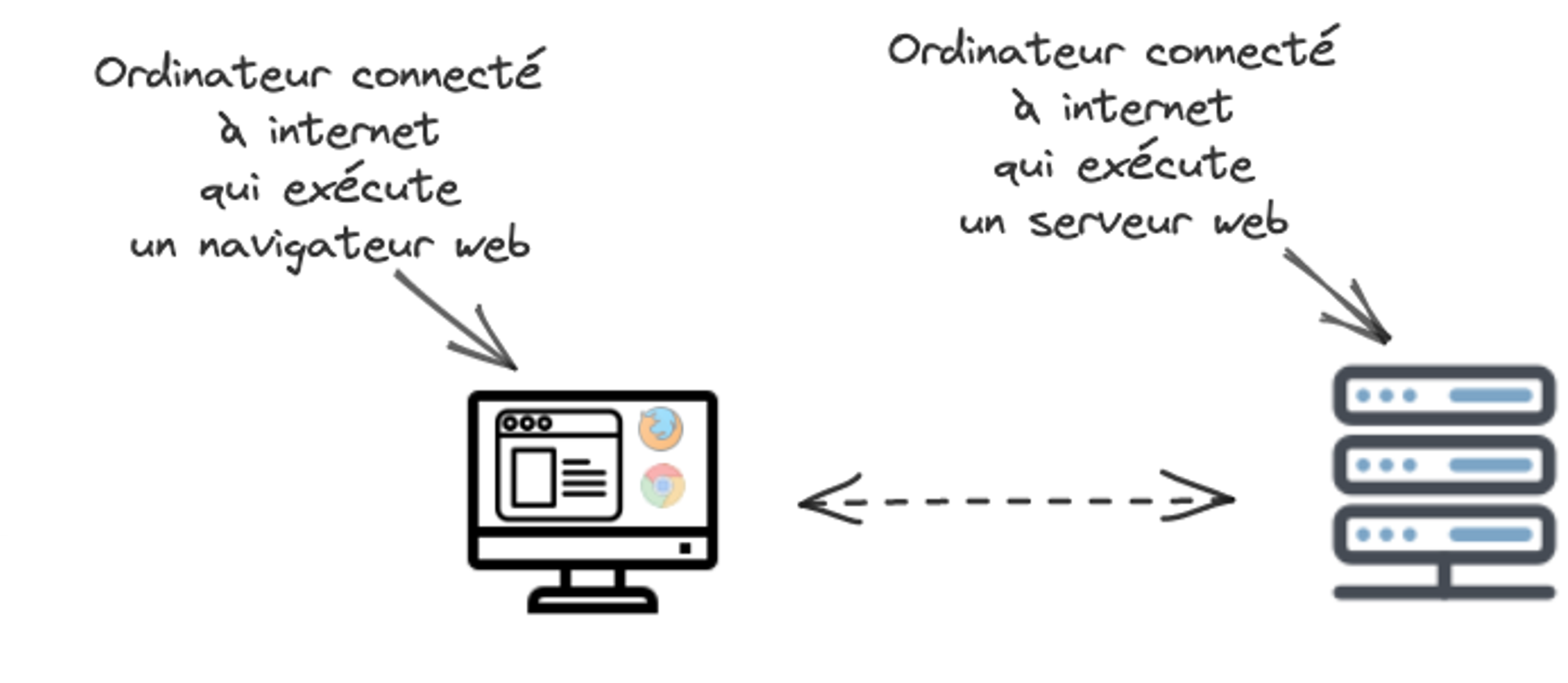
Figure 1.1: A web browser (left) retrieving resources to display web pages. A web server (right) delivering the resources that make up web pages.
Our definitions highlight the concepts of web resource, web page, web server and web browser. They also stress that browsers and web servers are programs running on computers reachable on the Internet. Web servers deliver resources to Internet-connected computers that use a web browser. Browsers display web pages by requesting the resources that make them up. This lets us give a complete definition of the web:
The smallest web server
The smallest web server one can build displays a single web page made up of a single resource (an HTML document). Developing this web server requires developing two components:
- The single resource delivered by the web server (the HTML code)
- The program that responds to requests from web browsers (the code of this program).
The web page displayed is extremely simple. It only shows the following text: "Hello, this is the only page I have!". It is made up of a single resource, its HTML code (file index.html). Code 1.1 shows this HTML code.
<!DOCTYPE html>
<html lang="en">
  <head>
    <title>Small web page</title>
  </head>
  <body>
    Hello, this is the only page I have!
  </body>
</html>
Code 1.1: The page
The program of our smallest web server must respond to requests from web browsers and send them back the resource of its single web page (the HTML code of the page). Code 1.2 shows the code of this server in NodeJS (file server.js).
- The first two lines build the web server. A web server is built by calling the createServer() function of NodeJS's http API. This function returns an object representing the server. Our code defines a constant named server that refers to this object.
- Lines 4 to 8 specify how the server behaves once it is started. It stands ready to receive an HTTP request. As soon as it receives one, it sends back the HTML code (Code 1.1) as the response. The browser can then display this page. To code the server's behavior we use the on method. It takes two arguments. The first is the type of event. In our case, we want to specify how the server behaves when it receives a request, so the first parameter is request. The second parameter is a function that takes two parameters (the request and the response). This function is executed every time the server receives a request. In our case, this function reads the file index.html using the readFileSync function of the fs API (fs for filesystem), then uses the end method, which sends the response to the web browser's request and ends the processing.
- Lines 10 to 13 start the web server by specifying its port (8080). This is done with the listen method of the server object. Its first parameter specifies the server's port. The second is a function that runs as soon as the server is up. In our case, we simply display a message on the console.
const http = require("http");
const server = http.createServer();

const fs = require("fs");
server.on("request", (request, response) => {
  const indexPage = fs.readFileSync("./index.html", "utf-8");
  response.end(indexPage);
});

const port = 8080;
server.listen(port, () => {
  console.log("Server running");
});
Code 1.2: The server
The two files (index.html and server.js) make up the code of our smallest web server. To start the server, you simply run the file server.js with NodeJS. The files index.html and server.js must be copied into the same directory; then run the following command in a terminal (PowerShell on Windows, a shell on Linux or macOS) in that same directory:
node server.js
Code 1.3: Command to start the web server.
Running our smallest web server should display "Server running" on the console. To test it, open a web browser on the same computer that runs the web server and go to http://localhost:8080. The browser will then retrieve the resource and display the web page.
Navigating the pages of a server: understanding URLs and HTTP
Browsing the web means using a web browser and telling it which page you want to visit. This is done by giving the exact location of the page, that is, the address of the server that delivers the page and the identification of the page's main resource (its HTML code). All this information (server address and page identification) is represented by the URL (Uniform Resource Locator) of the page you want to visit.
As web users, we handle URLs every day. For example, Google's URL is https://www.google.com and that of the W3C (the consortium that defines web standards) is https://www.w3.org/. These URLs refer to the HTML code of the Google and W3C pages.
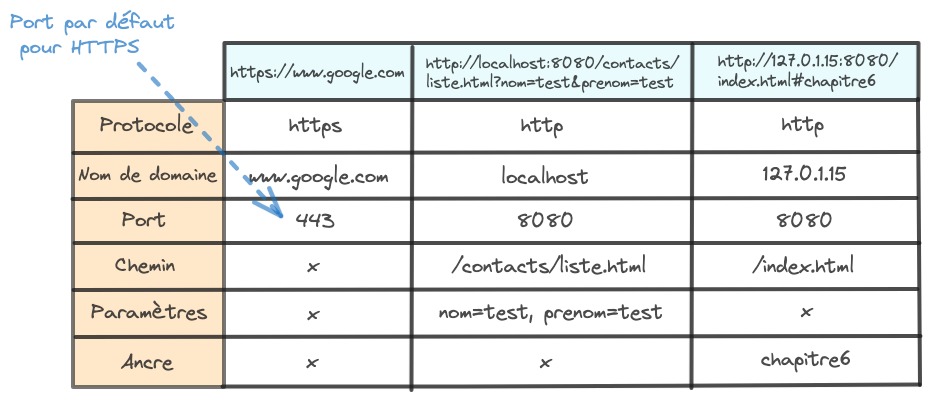
Understanding the structure of a URL is essential to understanding how browsing the web works. A URL is made up of six parts. The first five parts precisely locate the resource; the sixth part is used internally by the browser to point to a sub-part of the resource. Here is a precise description of the six parts of a URL:
- The protocol: URLs are used to identify resources delivered by servers on the Internet. The first part of the URL specifies which Internet protocol must be used to access the resource. For web pages, there are two possible protocols: HTTP or HTTPS (S for secure).
- The IPv4 address of the computer running the web server, or its DNS name: a web server runs on a computer connected to the Internet. Locating a web resource requires locating its web server, and therefore the computer running it. This can be done by giving its IPv4 address or its domain name.
- The computer's port: a web server is a program running on a computer. This program accepts Internet requests. To do so, it must open a communication port on the computer. The URL can (this part is optional) specify the web server's port. By default, if the port is not given in the URL, the HTTP port is 80 and the HTTPS port is 443.
- The path of the resource: a web server can offer many web resources. Web resources are distinguished by their web path. A web path is made of names separated by the "/" character. Note that a web path is different from a file path.
- The parameters: locating a web resource may require parameters. A URL can contain parameters. Each parameter is defined by a key and a value (separated by the "=" character). Two parameters are separated by the "&" character.
- The anchor: a web page can contain sub-parts that can be located (paragraphs, for example). A URL can identify a sub-part so that the browser can display it more easily (to jump directly to a paragraph, for example).
Note that a URL is represented by a character string. Special characters are used to separate its six parts:
- The protocol (http or https) ends with the characters "://"
- The port starts with the character ":"
- The path starts with the character "/"
- The list of parameters starts with the character "?"
- The anchor starts with the character "#"
The following URLs are therefore broken down as follows:
We saw that the first part of a URL specifies the protocol used. On the web, HTTP (Hypertext Transfer Protocol) is used to set up communication between web browsers and web servers (with HTTPS for the secure version). As soon as a URL is requested in a web browser, an HTTP request is sent to the server designated by the URL. This request can ask the web server for various actions, such as retrieving a web page (GET) or sending information (POST). Once it has received the request, the server processes it and sends back an HTTP response. This response includes a status code indicating whether the request succeeded (for example, 200 for success) or not (for example, 404 for "not found"), along with the requested data. Chapter 5 gives more details about the HTTP protocol.
Figure 1.2 illustrates how the browser and the web server communicate. The user first opens a web browser and enters the URL http://localhost:8080. The browser then sends an HTTP request asking for the corresponding resource (we will give more details about the HTTP protocol in chapter 5). The server sends back the response (the HTML code). The browser can then display the page.
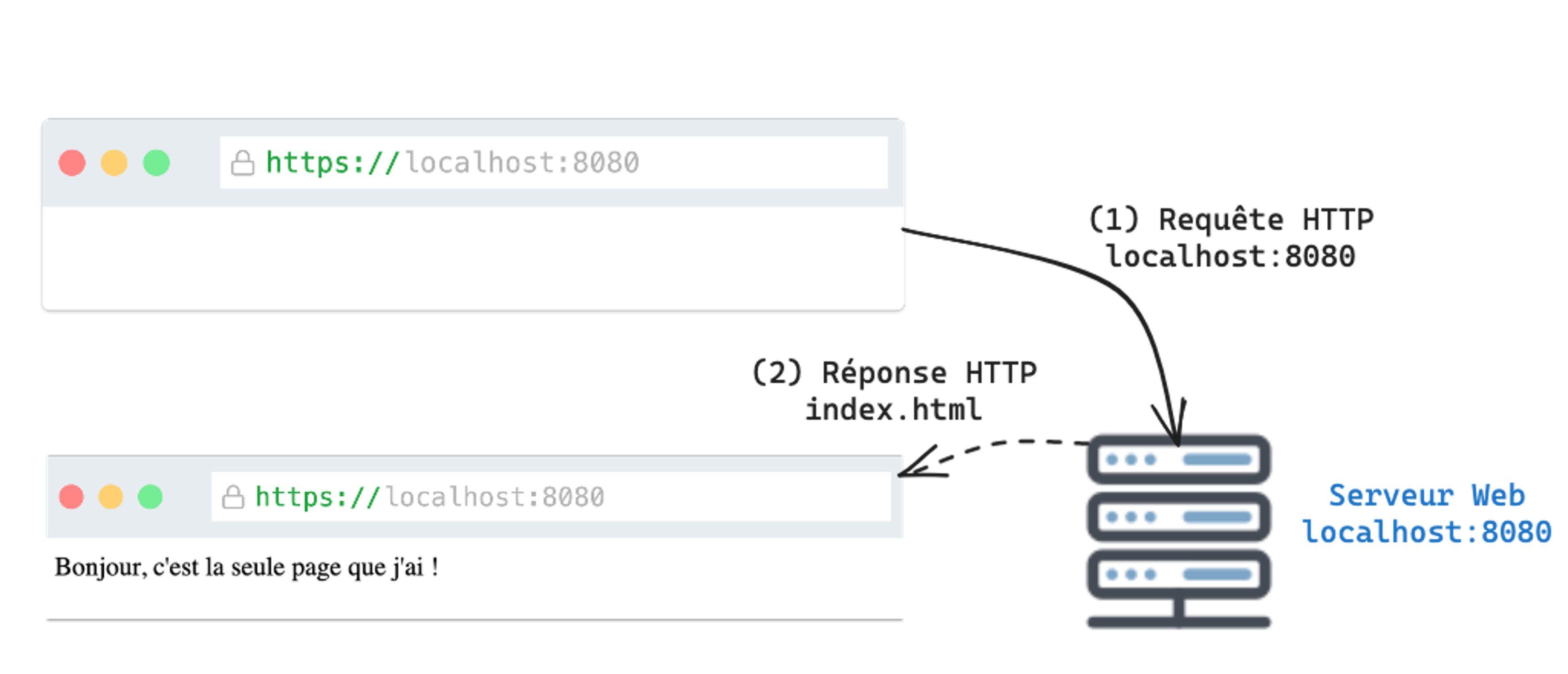
Figure 1.2: The web page of our smallest server.
A web server with 2 pages
To illustrate navigation from page to page, we will now add a second web page to our web server. More precisely, we will make it possible to navigate from the first page to the second.
Developing this new server requires (1) modifying the first web page so that it points to the second page, (2) building the second page, and (3) modifying the web server program so that it sends back the first or the second page depending on the requests sent by web browsers.
Modifying the first page means adding a web link to the second page.
The simplest way is to use the HTML <a> tag, whose href attribute specifies either the full URL of the second page or just the web path part of that URL.
This tag can contain text.
If it does, the browser makes this text clickable and ensures that a click requests the display of the target page.
Code 1.4 shows the HTML code of the new web page.
Line 8 contains the web link to the second page.
It is important to note that we chose to give only the path of the second web page (and not its full URL). This indicates that the second page is hosted on the same web server (same protocol, same DNS name, same port). Moreover, we chose page2 as the path. This choice is completely arbitrary and is not tied to the file name (which we will call page2.html). Although we could have made a different choice, we find this one clearer and easier to understand.
<!DOCTYPE html>
<html lang="en">
  <head>
    <title>Index</title>
  </head>
  <body>
    Hello, this is the only page I have!
    <a href="page2">Click here to display page 2</a>
  </body>
</html>
Code 1.4: The modified source code of the page index.html with a link to page 2.
Code 1.5 shows the HTML code of the second page. There is nothing new in this code. This page simply displays "This is page 2!".
<!DOCTYPE html>
<html lang="en">
  <head>
    <title>Index</title>
  </head>
  <body>
    This is page 2!
  </body>
</html>
Code 1.5: The source code of the second page page2.html.
Code 1.6 shows the code of our modified web server. The first change is the addition of a second web page. To do this, we added a condition to the request handling. If the web path of the request is page2, the server sends back the HTML code of the second page. Otherwise, it sends back the HTML code of the first page.
const fs = require("fs");

const http = require("http");
const port = 8080;

const server = http.createServer();

server.on("request", (req, res) => {
  if (req.url === "/page2") {
    res.end(fs.readFileSync("./page2.html", "utf-8"));
  } else {
    res.end(fs.readFileSync("./index.html", "utf-8"));
  }
});

server.listen(port, () => {
  console.log("Server running");
});
Code 1.6: The modified source code server.js of the smallest web server.
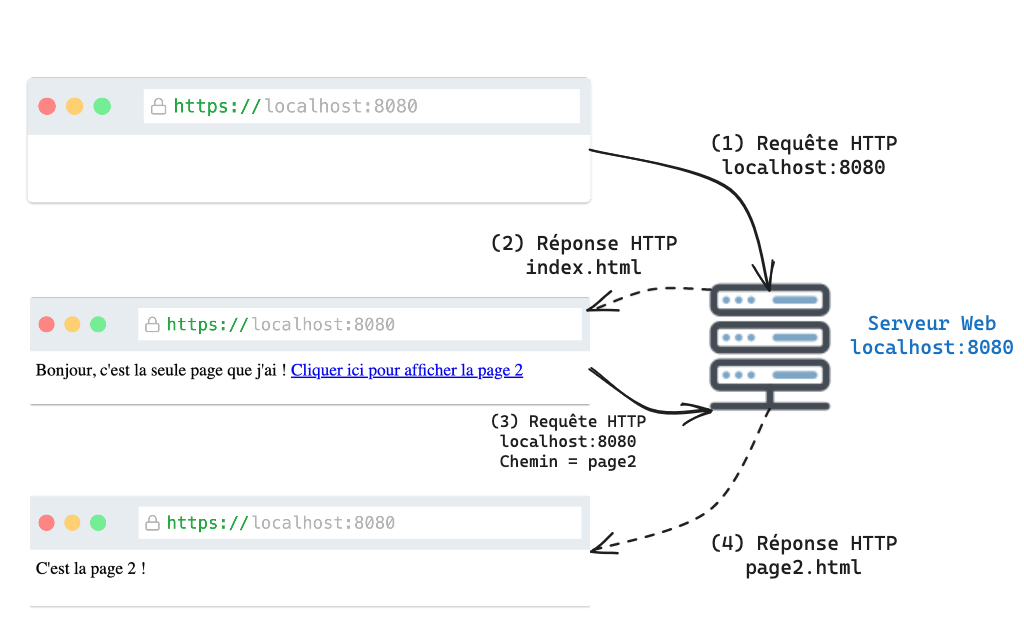
Figure 1.3: The requests between the browser and the web server.
Figure 1.3 illustrates the interaction between a web browser and the web server when using these two web pages. First, open a web browser and enter the URL http://localhost:8080.
The browser sends an HTTP request to the web server, which sends back the HTML contained in the file index.html.
When the browser receives this HTML, it renders it graphically (in particular, the text inside the <a> tag is displayed in blue).
If you click on the blue text, the browser sends a new HTTP request, this time with a URL pointing to page2. The web server receives this request and returns the HTML contained in the file page2.html. The browser can then display the second page.
This chapter presents the basic concepts of the web. Remember the following three points:
- You must clearly understand that web pages are made up of resources delivered by web servers. Developing a website therefore means developing the web pages, but also the server that handles the requests from web browsers.
- We saw the notion of URL, which is used to locate web resources. The URL is used by the browser to express its request (which web page it wants to display) and by the web server to find the corresponding file (we will see later that web pages are very often generated from the parameters contained in the URL).
- Finally, we briefly mentioned that web browsers and web servers communicate over the Internet using the HTTP protocol.
Practice
Review questions
What is a web server?
- a) A program that runs on a computer and delivers resources (HTML, CSS, JavaScript, images, sound, etc.) via the HTTP protocol.
- b) A computer that lets a web browser access web pages.
- c) A file system in which web pages are stored.
What is a web browser?
- a) A program that displays web pages by accessing the resources delivered by web servers.
- b) A program that opens HTML pages.
- c) A program that builds HTML pages.
What is a web page?
- a) An HTML file that can be opened in a browser.
- b) A file delivered by a web server.
- c) Something meant to be displayed by a web browser and made up of several resources delivered by web servers.
What is a URL?
- a) The precise address of a resource delivered by a web server.
- b) The address of a web page.
- c) The address of a web server.
What is the HTTP protocol?
- a) A standard that describes how a web browser and a web server communicate.
- b) A standard that describes how to download web pages.
- c) A standard that describes how web pages are structured.
Answers: 1-a, 2-a, 3-c, 4-a, 5-a
Exercise 1 - A wall of links to web pages
The goal is to create a web application that offers a single page containing links to all the pages you find interesting.
Create a directory chapitre1-ex1 in which you will create two files: server.js and index.html. The file server.js will contain the code of your web server. The file index.html will contain the code of the web page.
Code the server server.js so that the web server delivers the page index.html whatever request is sent to the server.
Code the web page index.html so that it displays a link (
<a>tag) to https://vanillacademy.com.Choose the URLs of 2 web pages you find interesting and add these URLs to the page index.html.
Exercise 2 - Links to hidden resources
In this exercise, you will work on discovering URLs and adding links that may be hidden on a remote server.
Create a directory chapitre1-ex2 in which you will create two files: server.js and index.html. The file server.js will contain the code of your web server. The file index.html will contain the code of the web page.
Code the server server.js so that the web server delivers the page index.html whatever request is sent to the server.
Code the web page index.html so that it displays a link (
<a>tag) to the image of the girl in blue on the exercise page.Look at the source code of the exercise page and find the link to the image of June 4, 2023, which has been commented out. Add this link to your page index.html.
The exercise page links to 10 pages, but a link to one of these pages is missing. Find this link and add it to your page index.html.
Project - Image wall
Let's start building our project. The goal is to develop a web application that displays images. This web application will consist of a home page (index.html) and an image wall (images.html) that will contain links (HTML <a> tag) to three image files stored in the images directory.
You can see the expected result here.
- Create a directory chap1-projet in which you will create three files: server.js, index.html and images.html. The file server.js will contain the code of your web server. The files index.html and images.html will contain the code of your two web pages.
- Download the file images.zip. Unzip it and save three images of your choice in a directory named images inside the chap1-projet directory.
- Code the web server server.js so that it delivers the page images.html via the URL images, and the three images via the URLs image1, image2 and image3. Any other URL returns the page index.html.
- Code the page images.html. It contains a list of three links (HTML
<ul>,<li>and<a>tags) to the 3 images stored in the images directory. Each link points to one image. - Code the page index.html. It will contain a link (HTML
<a>tag) to the page images.html.